
Prerequisite: Enable Automated Backups
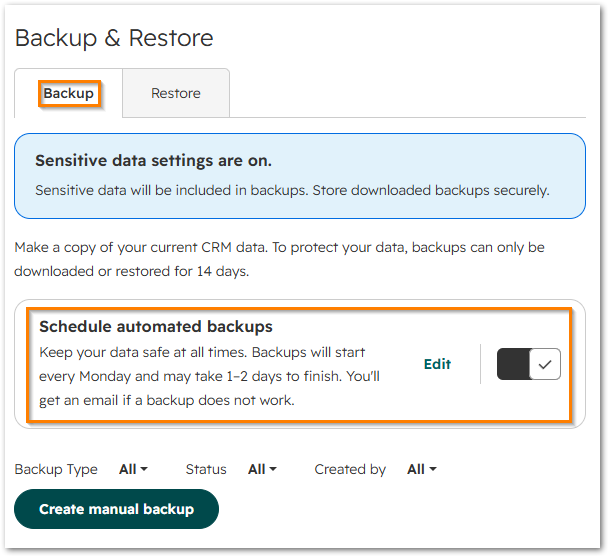
Before you can use the restore feature, you must have automated backups set up in your account:
- Go to Settings > Data Management > Backup & Restore.
- Click the Backup tab.
- Toggle Schedule automated backups to ON.
How Restores Handle Existing vs. New Records
If an import created new records and also updated existing records, restoring will:
- Delete those new contacts/records created by the import.
- Restore the property changes made by that import for existing contacts/records to their pre-import state.
Step 1: Navigate to Backup & Restore Settings
- In your HubSpot account, click the Settings icon (gear symbol) in the main top navigation bar.
- In the left sidebar menu, scroll down under Data Management and select Backup & Restore.
- Click the Restore tab at the top of the page.
Step 2: Prepare the Restore
- Click Restore CRM changes.
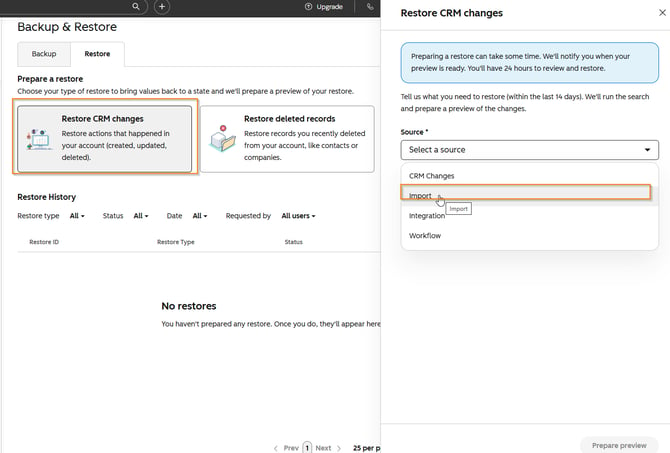
- For this example, click the Source dropdown menu and select Import.
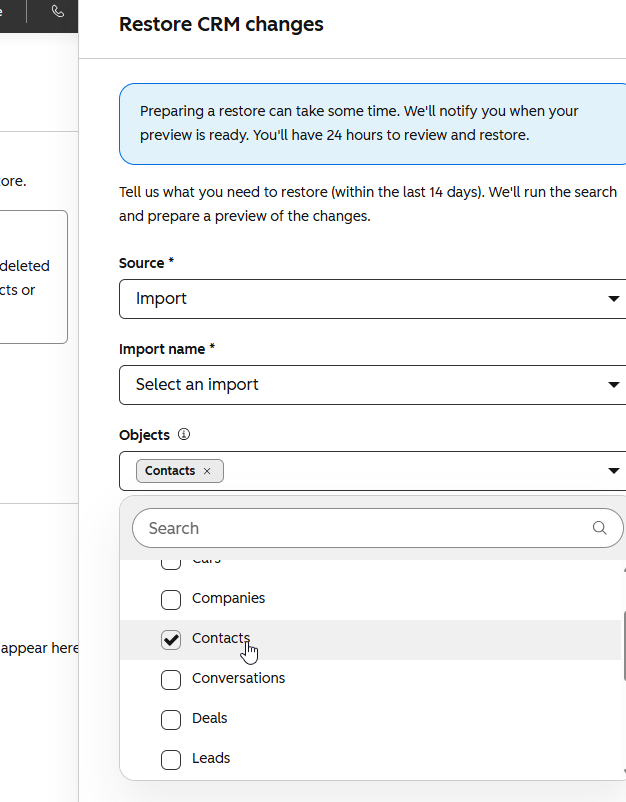
- Click the Name dropdown and select the specific import file you want to undo.
- Select the Object types to include (e.g., Contacts, Companies, Deals, or Custom Objects).
- Select the target date and time to revert your data back to.
- Click Prepare preview.
Step 3: Review and Confirm the Rollback
- Under the Restore History table, hover over your prepared restore preview and click Open preview.
- Review the record details, current property values, and proposed restored values.
- Select the individual records you want to revert, or choose all affected records.
- Click Restore in the bottom right corner.
- Enter the required confirmation prompt and click Restore to confirm the rollback.
Key Requirements & Notes
- Time Limit: CRM property changes can only be rolled back within 14 days of the change occurring.
- Permissions: Only users with Super Admin permissions can access and execute restores in Backup & Restore settings.
- Deleted Records: If you need to recover completely deleted records rather than modified values, select Restore deleted records on the main Restore screen or access the HubSpot Recycle Bin.