1. Core Principles of View-Only Access
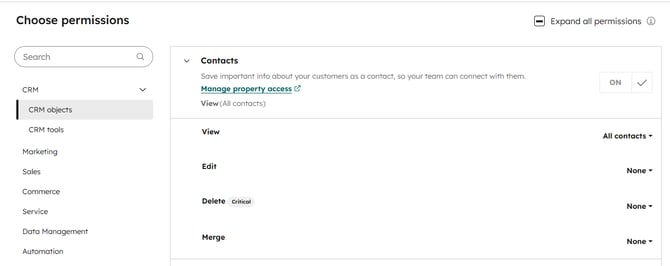
In HubSpot, View-Only is a permission level that can be applied to various tools, including CRM objects (Contacts, Deals), Workflows, Dashboards, and Social media.
-
Access: Users can log in and open the records or assets they have permission to see.
-
Visibility: Users can see data, timelines, activity logs, and reports.
-
Restriction: Users cannot create, edit, or delete records or assets where the permission is set to “View only.”
2. Tool-Specific Capabilities
How View-Only permissions behave depends on which part of HubSpot the user is accessing:
CRM Records & Activities
-
What they can do: See records (Contacts, Companies, Deals, Tickets) and view the activity timeline (calls, emails, tasks, notes).
-
What they cannot do: Edit properties, log new activities, or delete existing notes/calls.
Dashboards & Reporting
-
What they can do: Open dashboards, view reports, and interact with dashboard filters (e.g., changing date ranges).
-
What they cannot do: Edit the dashboard layout, add/remove reports, or change sharing settings.
Workflows & Automation
-
What they can do: Open and view the workflow logic, including enrollment triggers and specific actions.
-
What they cannot do: Edit triggers, change actions, or turn workflows on/off. The workflow will display in a "View-only" state.
Social Media
-
What they can do: Can receive notifications (for example, from chats or inbox activity)
-
What they cannot do: Cannot be able to take action or create content, including creating or scheduling social posts.
3. Can View-Only Users Receive Notifications?
Yes. Permission levels (what a user can do) are separate from notification settings (what a user is told). As long as a user has "View" access to a record, they can receive alerts related to it.
Common Notification Scenarios
-
Tasks: View-only users can receive task assignments and reminders. They can open the task to view it, even if they lack the permission to mark it as "Complete."
-
@-Mentions: If a team member @-mentions a view-only user in a note, call, or activity, the user will receive a notification and be directed to the record.
-
Tickets & Help Desk: If assigned to a ticket or mentioned in a comment, the user will be notified. Their ability to reply depends on specific Service Hub permissions.
-
Lead Activity: They can receive "Lead Revisit" notifications if they are the record owner or have visibility into those contacts.
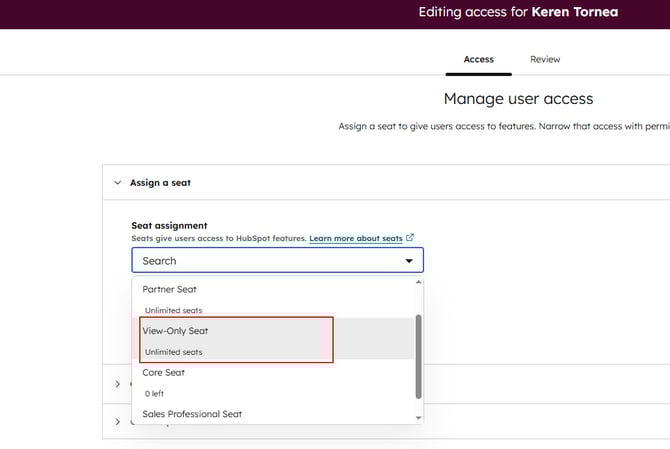
4. Is a View-Only Seat Right for Your User?
Use the table below to determine if this permission level meets the needs of your team member.
| A View-Only seat is great for... | A View-Only seat is NOT enough for... |
| Reviewing performance via dashboards and reports. | Managing pipelines or moving deals between stages. |
| Lookup context on CRM records before a call or meeting. | Building automation or managing workflow logic. |
| Passive collaboration (reviewing drafts or being @-mentioned). | Publishing content to social media or blogs. |
| Monitoring activity without the risk of accidental data deletion. | Administering settings or managing integrations. |
5. How to Configure View-Only Permissions
To set a user to View-Only, an Admin must:
-
Go to Settings > Users & Teams.
-
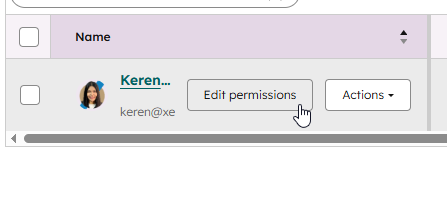
Select the User you wish to edit.
-
Under the Permissions tab, navigate through the categories (CRM, Marketing, Sales, Service).
-
Toggle the dropdown for specific objects or tools to View (ensuring "Edit" and "Publish" are unchecked).