
The Issue
A user is trying to create or move a deal, but a specific pipeline (e.g., Course Sales Pipeline) appears greyed out or unselectable in the dropdown menu meaning the user doesn't have access to the pipeline.
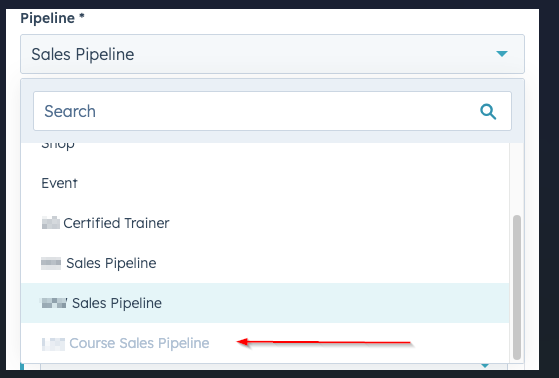
But when checking Settings > Users & Teams, the user appears to have full "View" and "Edit" access to "All deals", so why can't they access that deal pipeline?
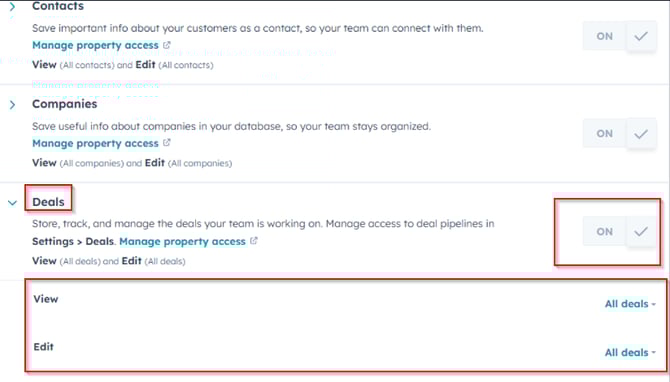
The Technical Cause: Pipeline Access vs. Object Permissions
HubSpot has two layers of security for Objects (Deals, Contacts etc):
-
Object Permissions (What you see in Image 2): Grants general permission to interact with the "Deal" object.
-
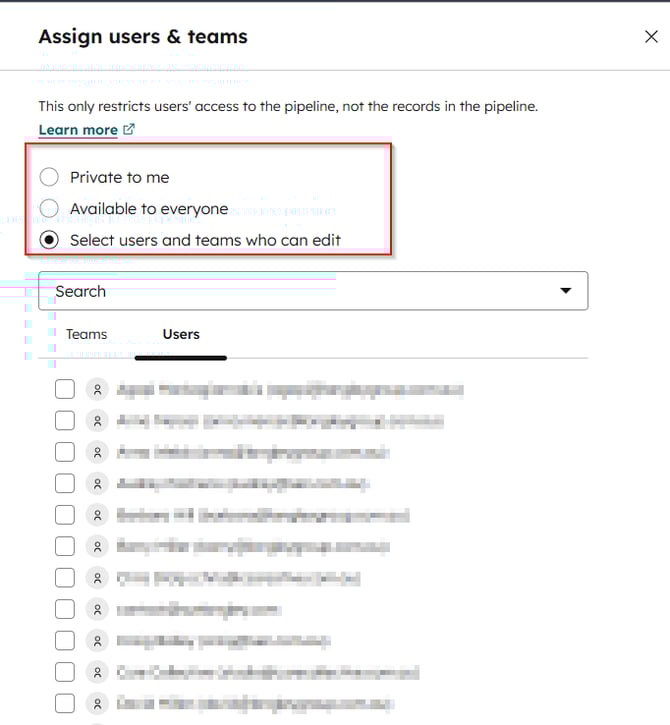
Pipeline Access (What is causing the lockout in Image 1): A secondary gate that limits specific pipeline access to certain users or teams. If a pipeline has restricted access and the user isn't on the list, the pipeline is "locked," even if they have "All deals" access.
The Fix: How to Unlock the Pipeline
-
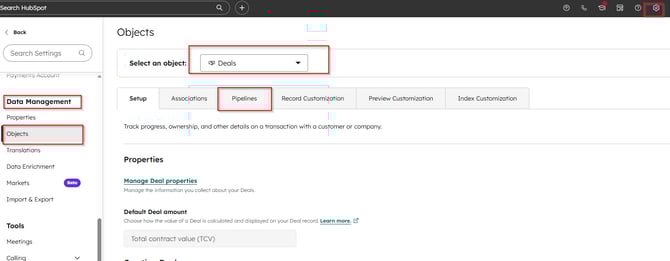
Click the Settings icon (cog) in the top navigation bar.
-
In the left sidebar, go to Objects > Deals.
-
Click the Pipelines tab.
-
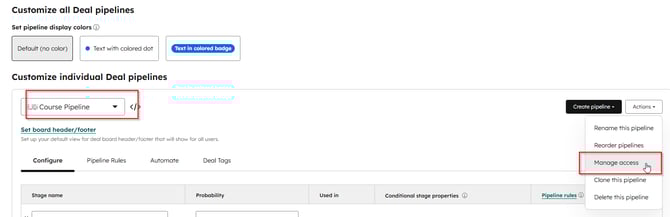
Select the greyed-out pipeline from the dropdown
-
Click the Manage Access tab (located next to "Board View" or under the "Actions" button).
-
Change the setting from "Limited Access" to "Everyone" OR specifically add the user/team to the allowed list.
-
Click Save.
Summary for Quick Tips
-
If all pipelines are greyed out: Check global User Permissions.
-
If only ONE pipeline is greyed out: Check Pipeline Access under Deal Settings.
Pro-Tip: This most commonly happens when a new pipeline is created and the creator forgets to "Share" it with the rest of the team, or when a user is moved to a new team that hasn't been granted access to that specific sales process.