
Step 1: Open the "Content" Tab and "From" Section
-
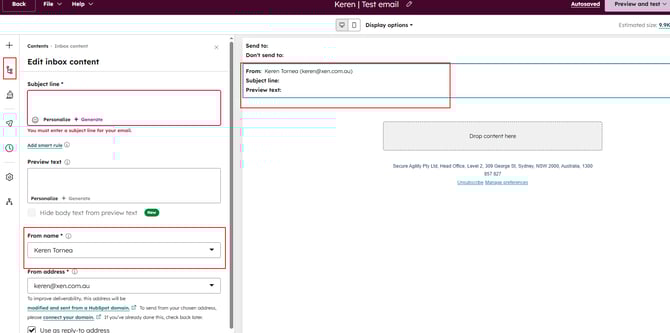
Inside your email draft, go to the Content tab at the top left
- Click into the From section in top middle. This is where you usually set the subject line and preview text etc
Step 2: Set the "From name" Variable
-
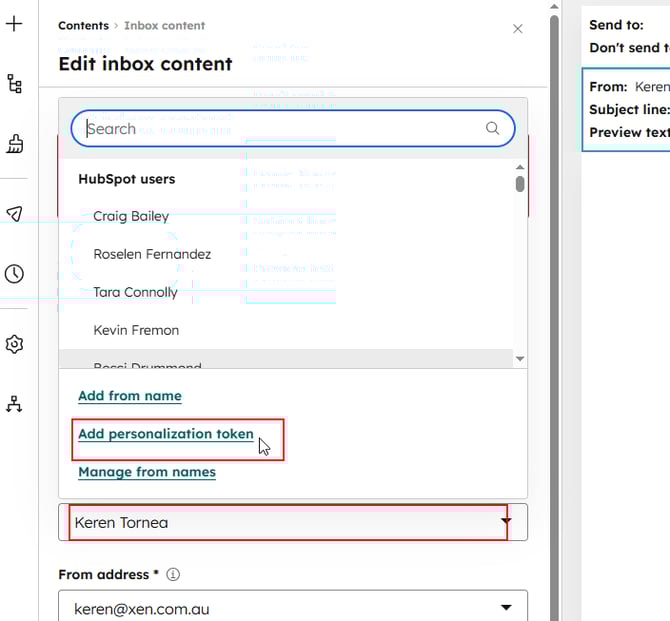
Click into the From name field.
-
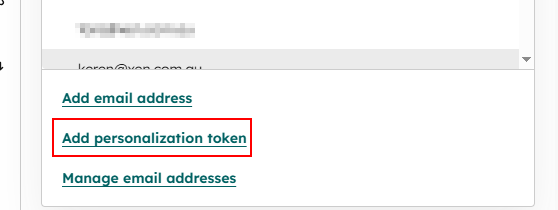
Click the Add personalization token
-
Insert your token type
-
In this case, it is the Contact
-
-
Select Contact owner > Full Name as token
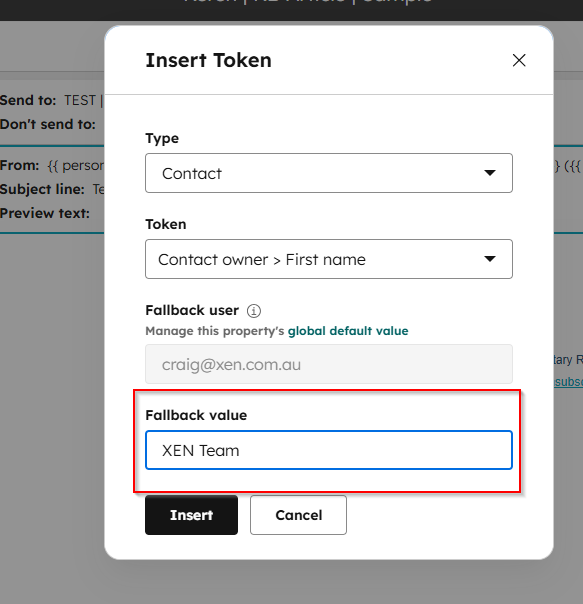
Tip: Add a "Fallback" value like XEN Team for contacts without an assigned owner.
Step 3: Set the "From address" Variable
-
Click into the From address field.
-
Click the Add Personalization token button again.
-
Insert your token type: In this case, it is the Contact owner > Email
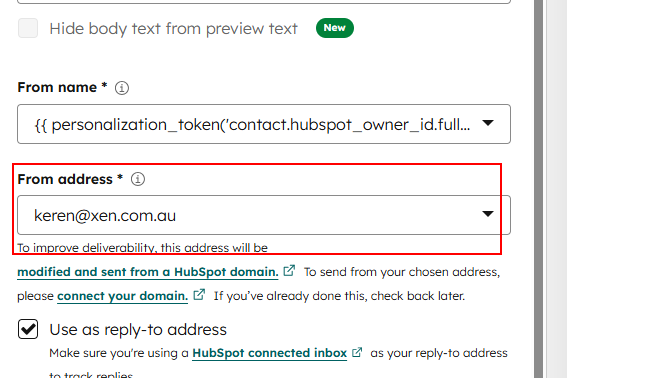
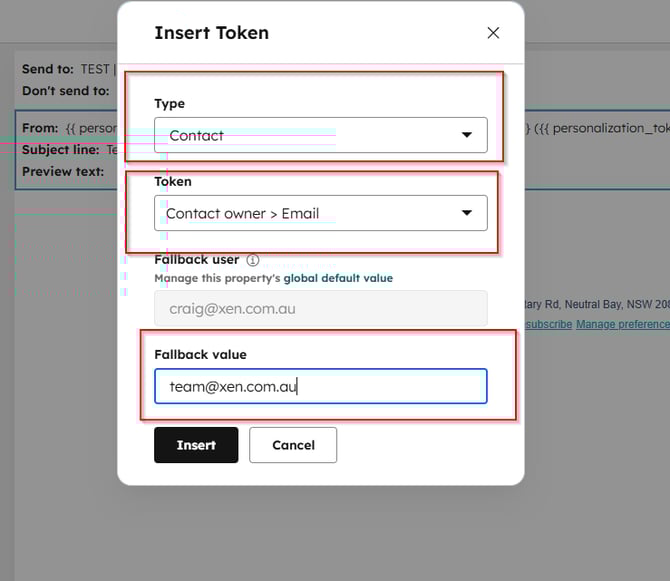
Tip: You can set fallback to a central marketing email as the Reply-to address