
Manual assignment via Lists
This is the fastest method for one-time updates to a specific group of people.
-
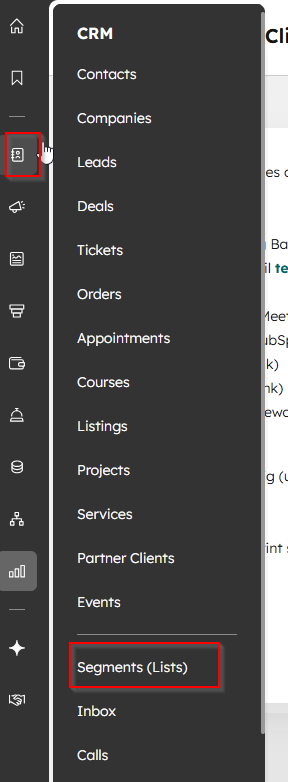
Navigate to Segments: In your HubSpot account, go to CRM > Segment (Lists).
-
Open the Segment (List: Click the name of the list containing the contacts you want to reassign.
-
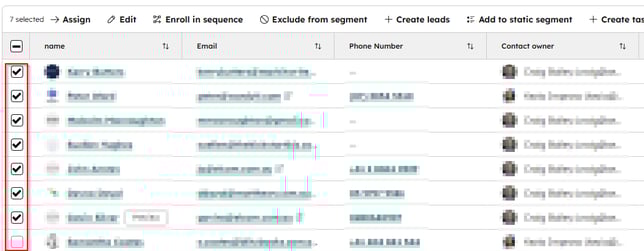
Select Contacts: Select the checkbox in the top left of the table header to select visible contacts on the current page (see first screenshot below) or select all the contacts if your list has multiple pages and you want to reassign all the contacts in the segment (see second screenshot below)

-
Assign New Owner: Click the Assign button in the top menu bar.

-
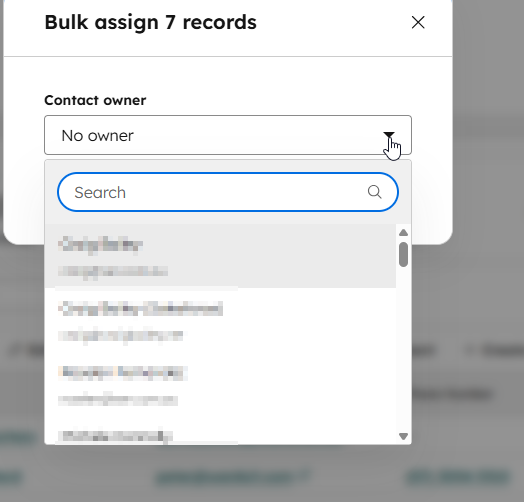
Update Owner: In the dialog box, click the Contact owner dropdown menu and select the new user.
-
Save: Click Update to finalise the change.
Method 2: Automated assignment via Workflows
Use this method for complex, large-scale, or recurring assignments where manual selection is inefficient.
-
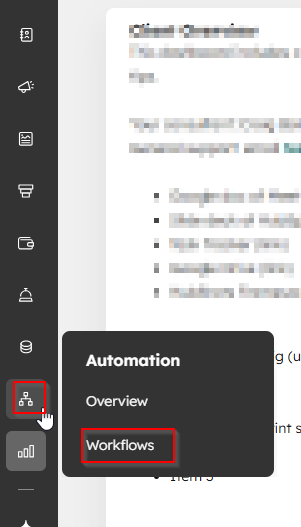
Navigate to Workflows: Go to Automation > Workflows.
- Select Workflow Type: Click Create workflow > From scratch.
- Choose Object Type: Select the enrollment trigger type (e.g., Contact-based, Company-based, etc.) depending on what records you want to reassign.

For this example, let's select Contact.
- Choose Object Type: Select the enrollment trigger type (e.g., Contact-based, Company-based, etc.) depending on what records you want to reassign.
-
Set Enrollment Trigger: Click + Add triggers. Example of triggers are below:
-
List-Based: Select List membership > is member of > [Your List Name]. This is best for bulk-editing an existing group.
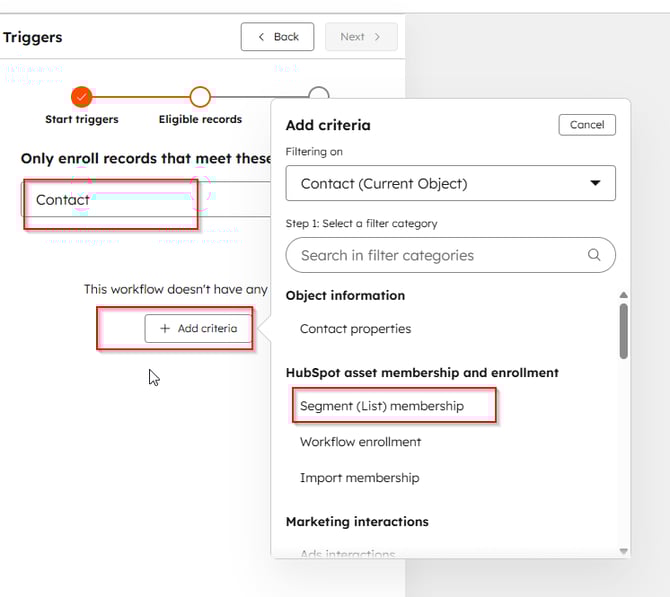
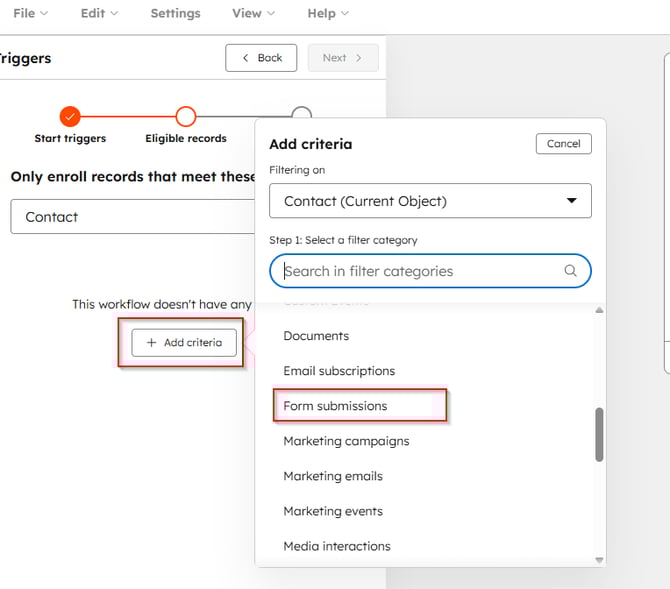
- Or select Form submission > Contact has filled out > [Form Name].
This ensures any new lead is assigned immediately upon conversion.
Click Next and Save and Continue.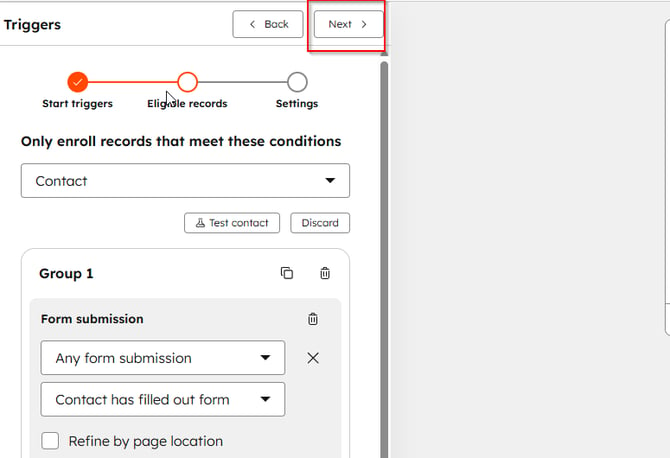
-
-
Add a Branch (Safety Check): * Click the (+) plus icon and select Branch as an action. Select AND/OR logic as the branch to be based on.

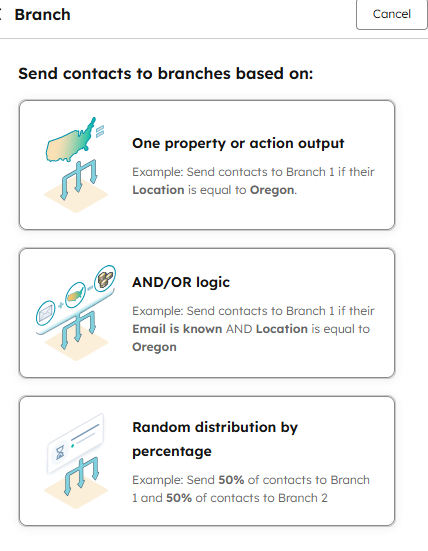
Create the branches. Contact owner unknown and Contact owner known
-
For Contact owner unknown, select the criteria Contact Properties > Contact Owner > is Unknown
- For Contact owner known, select the criteria Contact Properties > Contact Owner > is known
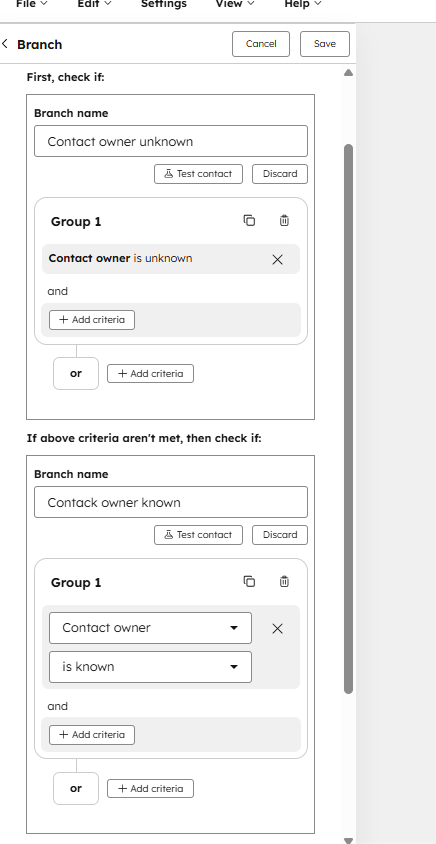
Click Save. This creates two paths: YES (No owner yet) and NO (Already has an owner).
-
-
Value equals branch (or If/then branch).
-
Set the condition to: Contact property | Contact owner | is unknown.
-
This creates two paths: YES (No owner yet) and NO (Already has an owner).
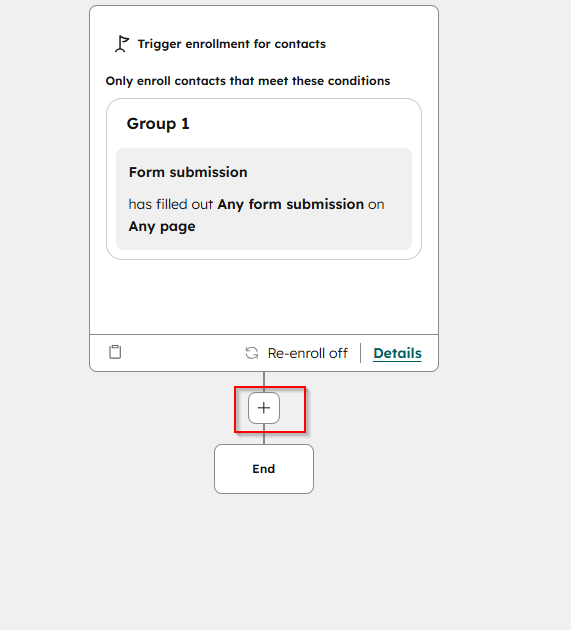
-
-
Assign Owner: Click the (+) plus icon under the Contact owner unknown branch to add an action and select CRM category. Then select Edit record under the CRM category

-
Choose a Property: Select Contact owner as the target property.
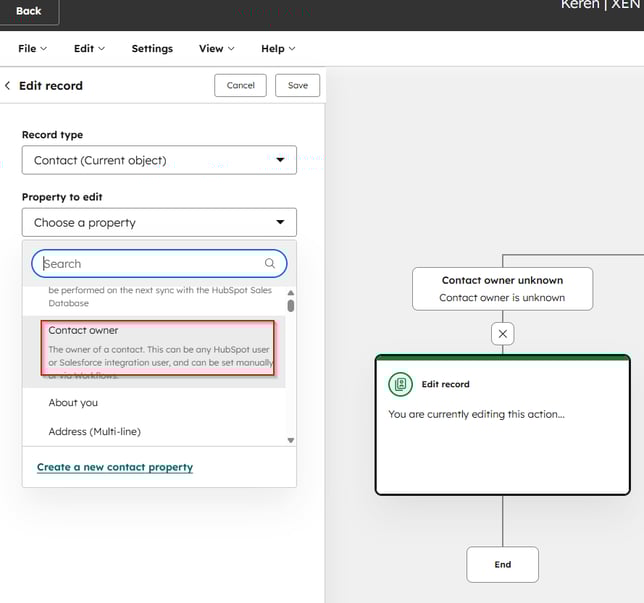
-
Select User: Choose the specific user from the dropdown menu and click Save.
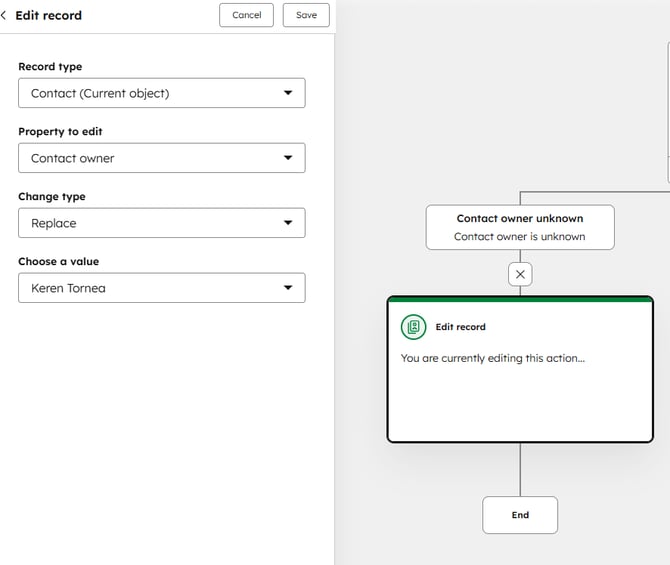
- Contact owner is known branch. You can leave it empty so nothing changes.
-
Review and Turn On: Review your workflow settings and click Turn on
Key Considerations:
-
Permissions: Ensure you have "Bulk Edit" permissions enabled in your HubSpot User Settings.