
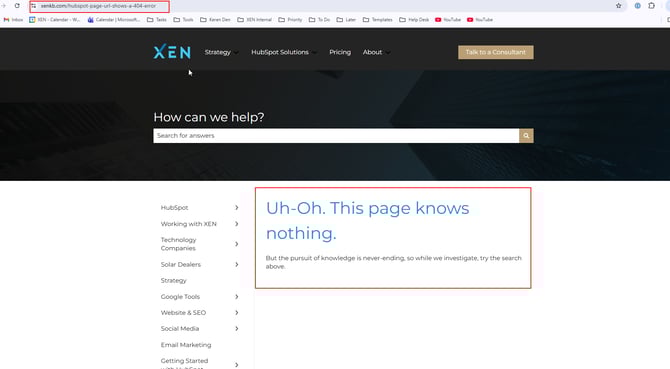
Why it happens
This happens because the URL for a page does not exist until the page is officially Published. Until then, the page lives only as a "Draft" within your HubSpot portal.
The Problem: Drafts vs. Live Pages
-
Draft Status: The page is hidden from the public and the web. Its final URL is reserved but not "active" on the internet.
-
Published Status: The page is live. Only now will the official URL (e.g.,
www.yourdomain.com/page-name) work for visitors.
If you need to share the page for internal review or approval before it goes live, you should use a Preview Link instead of the Live URL.
The Solution: How to Generate a Shareable Preview Link
HubSpot provides a specific link designed for collaboration that allows others to see exactly how the page will look without making it live.
-
Open the page or blog post in the HubSpot Editor.
-
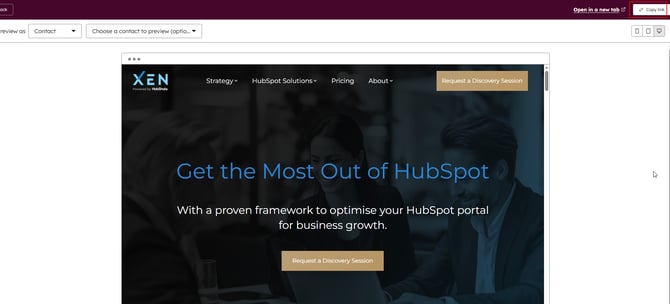
In the top right corner, click the Preview button.

-
A new window or sidebar will open. Click Open in new tab to see the full-page version.
-
In the preview toolbar at the top, click Copy link.
-
You can now send this link via email or Slack to your team or clients.
[!NOTE]
Who can see this link? Preview links do not require the viewer to be logged into HubSpot. The link itself contains a secure, unique token that grants access to the page. The preview link is accessible because the access is tied to the URL, not your login status.
Anyone who has the full preview link will be able to view the page, so it is important to share it only with the intended recipients. It also may be viewable by anyone but bots can’t crawl it and it’s non indexable.
Summary
-
Seeing a 404? Check if the page is still in "Draft" mode.
-
Need an approval? Send the "Shareable Preview Link" found in the Preview menu.
-
Ready to go live? Hit the Publish button in the top right. The 404 error will disappear immediately.