
Why it happens
HubSpot AI identifies contact information within email signatures and messages from connected inboxes. If a property (like First Name or Last Name) is currently empty in HubSpot, the AI will attempt to fill it.
The name interchange usually occurs if:
-
Formatting: The original email signature or metadata was formatted in a way that the AI misread (e.g., Last Name, First Name).
-
Blank Properties: The contact record had never been manually updated by a user, causing the AI to treat the fields as "available" to be filled.
-
Edge Cases: Unique names or punctuation in signatures can sometimes confuse the interpretation logic.
How to Identify Affected Contacts
Because there is currently no built-in list filter to specifically target "Changed by HubSpot AI," you can use the following methods to identify and review updates:
1. Export Filled Properties (Recommended for Bulk Review)
This is the most efficient way to see which contacts have been updated by AI.
-
Navigate to Settings > Objects > Contacts.
-
Go to the Setup tab.
-
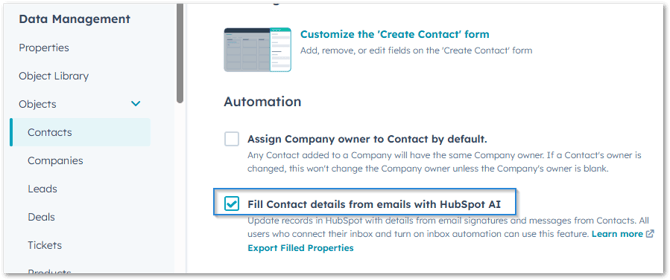
Click Export Filled Properties.
-
You will receive a CSV file showing which data fields were filled by AI and which contacts were affected.
2. Check Property History (Individual Review)
If you want to verify a specific contact:
-
Open the contact record.
-
Hover over the First Name or Last Name property and click Details (or View property history).
-
You will see "HubSpot AI" listed as the source for the change if the AI performed the update.
How to Manage the Feature
You can find the controls for this feature in your HubSpot portal
Disabling the Feature
If you prefer to stop this behavior entirely:
-
Go to Settings > Objects > Contacts.
-
Under the Automation section, uncheck the box for Fill Contact details from emails with HubSpot AI.
Our Recommendation
We generally do not recommend turning this feature off. While name interchanges can happen, they are considered "edge cases." For the vast majority of contacts, this feature saves significant time by automatically keeping your database populated with phone numbers, job titles, and names that would otherwise remain blank.
Current Limitations
There is no direct list filter for "HubSpot AI" as a change source. If you need to track these contacts in a list:
-
Use the Export Filled Properties feature mentioned above.
-
Manually tag or update a custom property for those contacts in bulk to use as a list filter.
For more information, refer to the HubSpot documentation on property format issues.