
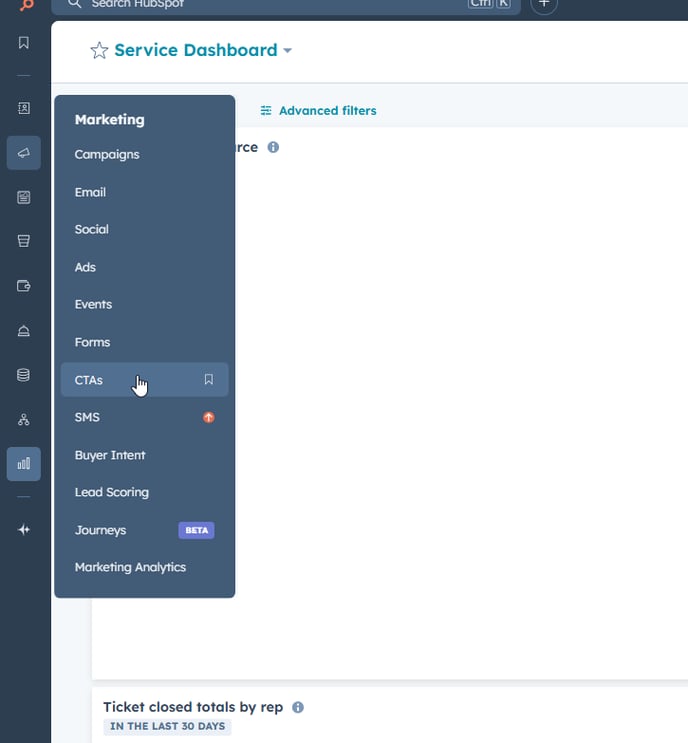
1. Navigate to CTAs in HubSpot
In the top menu, go to:
Marketing > CTAs
2. Switch to Legacy CTAs
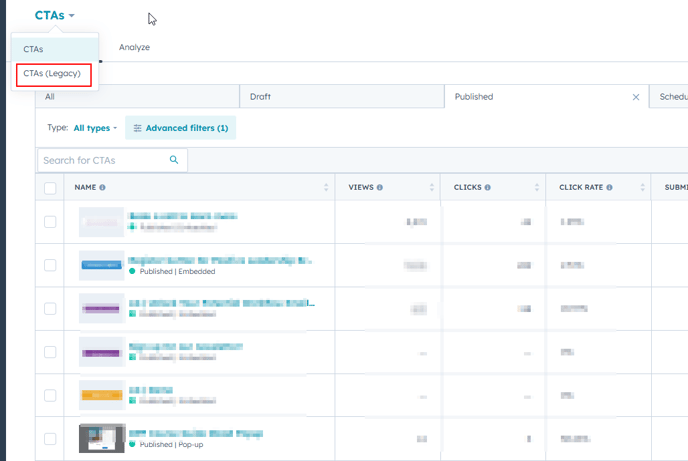
In the upper-left dropdown, you'll see two options:
-
CTAs
-
CTAs (Legacy)
Click CTAs (Legacy) – this is where your older button CTAs are managed.
3. Hover and Click “Edit”
Find the CTA you want to update.
Hover over it to reveal the Action button, then choose Edit.
4. Edit the CTA
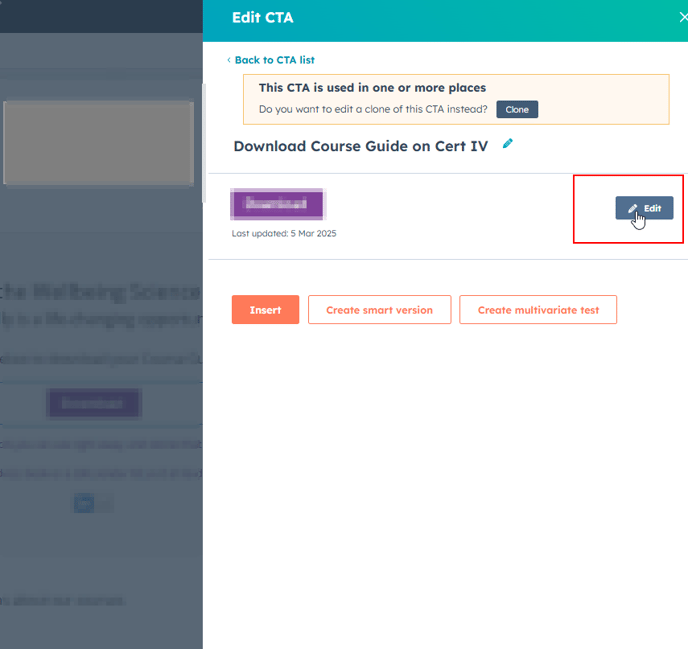
A side panel will appear on the right.
Click the Edit button to open the full CTA editor.
5. Go to Advanced Options
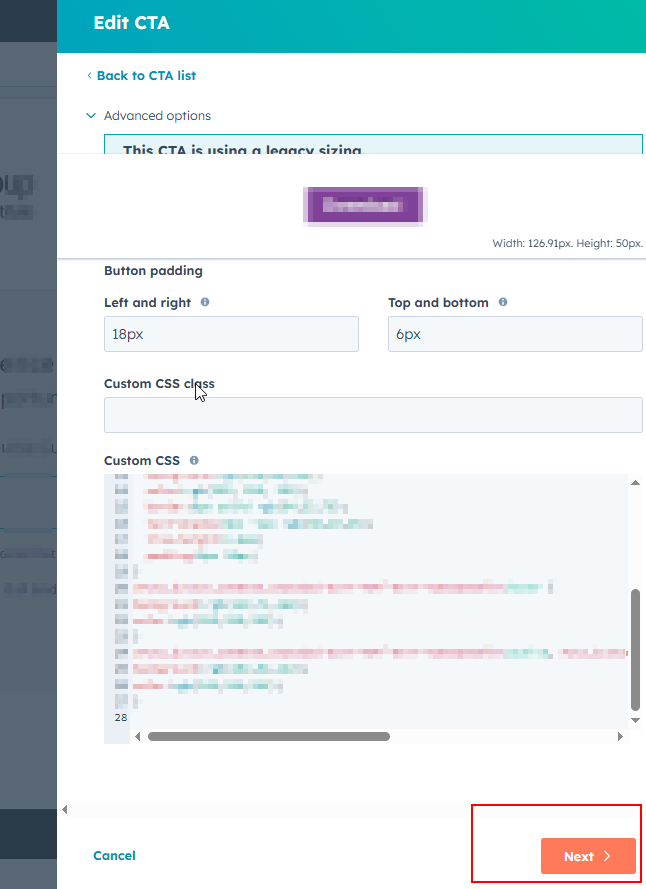
In the editor, click the Advanced options dropdown.
Scroll to the bottom and click Next to proceed.
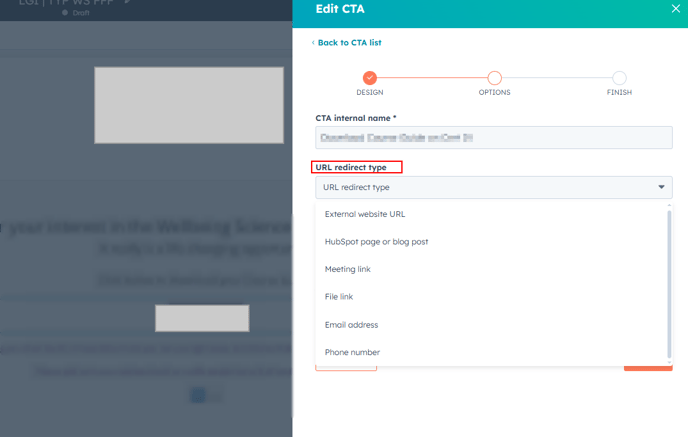
6. Choose Redirect Type
Under the redirect options, choose URL redirect.
From the link type options, select File link.
You can now browse and select the file you want the CTA to download (e.g. a brochure PDF).
There are also other options, depending where you want the CTA to go
7. Save Your Changes
Once you've selected your file, click Save.
Your legacy CTA will now link to and download the file when clicked.