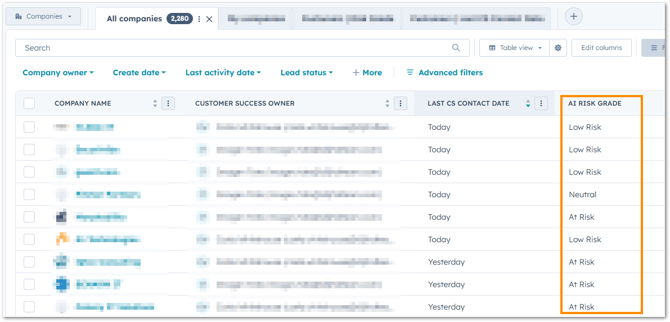
While HubSpot provides manual health scoring options within the Customer Success Workspace, these often rely on static data points. The Customer Health Agent offers a more holistic alternative by analysing meeting transcripts, emails, and recent activities.
Because the Agent logs its analysis as a note on the company timeline, the data cannot be reported on directly. This guide outlines how to extract those insights into properties, allowing them to be used in the Custom Report Builder.
Step 1: Create Custom Properties
To move the AI data into a reportable format, two properties must be created for the Company object:
-
Most Recent Note (rich text)
-
Captures the full content of the AI-generated note while preserving formatting
-
-
AI Risk Grade (single-line text)
-
Stores the final categorised health status (i.e. Low Risk, Neutral, At Risk)
-
Step 2: Configure the Extraction Workflow
A Company-based workflow is used to "catch" the note and update the properties.
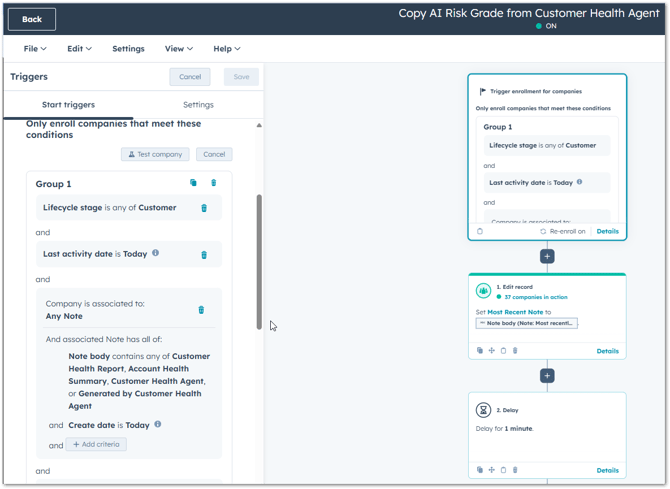
1. Enrollment Trigger
-
An Activity property (Note body) contains "Customer Health Agent"
-
The Activity property (Last activity date) is Today (for re-enrolment purposes)
-
The Company property (Lifecycle stage) is Customer
-
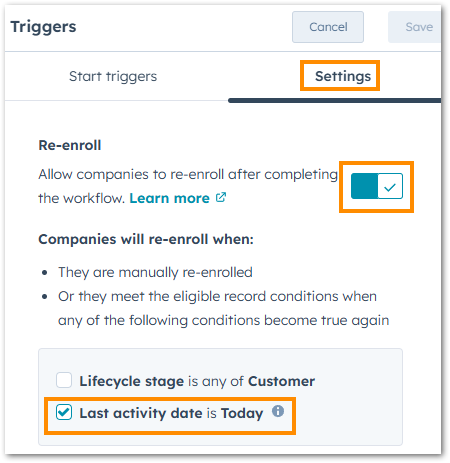
Re-enrollment should be enabled for the last activity date to ensure the property updates every time a new analysis is generated.
2. Data Transfer Action
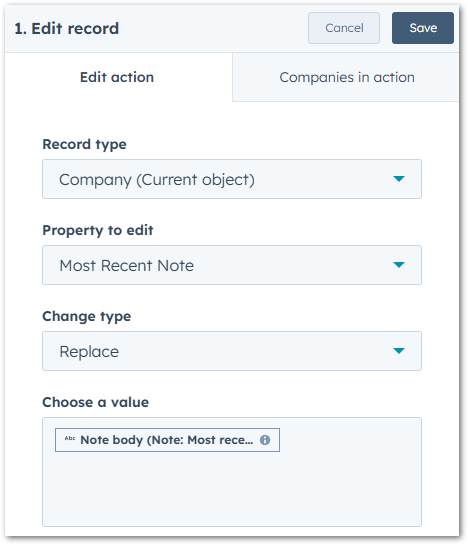
Use the Copy property value action:
-
Source property: Note body (from the most recent note)
-
Target property: Most Recent Note
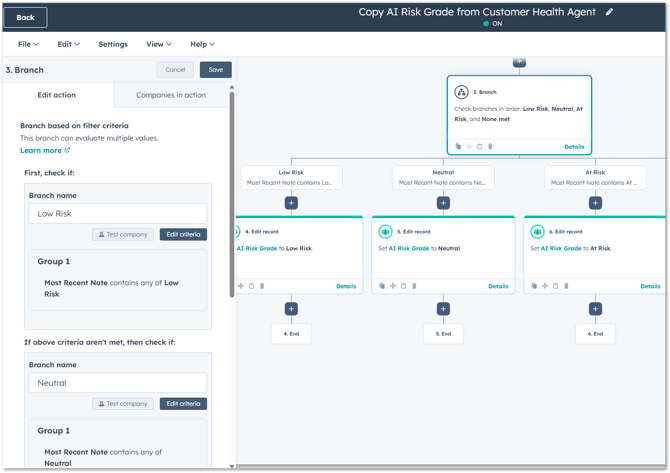
3. Categorisation Logic
Add a Branch after the copy action to identify the health status within the text:
-
Branch 1 (Low Risk): If "Most Recent Note" contains the phrase "Low Risk" -> Set AI Risk Grade to Low Risk
-
Branch 2 (Neutral): If "Most Recent Note" contains the phrase "Neutral" -> Set AI Risk Grade to Neutral
-
Branch 3 (At Risk): If "Most Recent Note" contains the phrase "At Risk" -> Set AI Risk Grade to At Risk
Outcome
By moving the Agent's holistic analysis into the AI Risk Grade property, it becomes possible to build reports that track health distribution across the entire customer base. This provides a data-driven view of customer standing that goes beyond manual property updates.