
Step 1: Create the Automated Email
You can create an automated email directly within the Email tool.
-
Navigate to the Email Tool: In your HubSpot account, go to Marketing > Marketing Email.
-
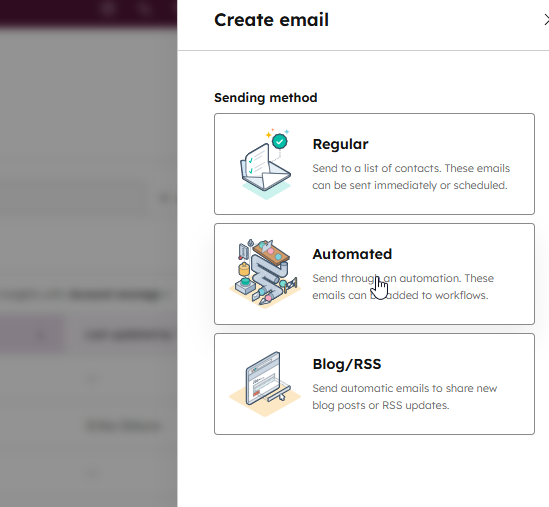
Create New Email: Click Create email in the top right.
-
Select Email Type: In the dialog box, select Automated.
-
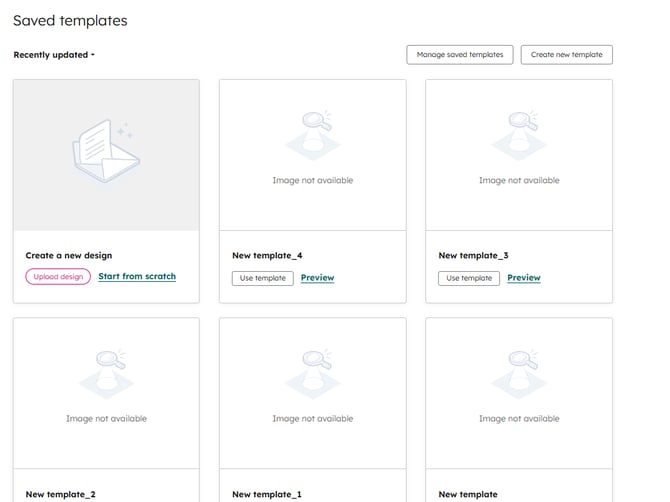
Choose a Template: Select a template or start an email from scratch
-
Design Your Content:
-
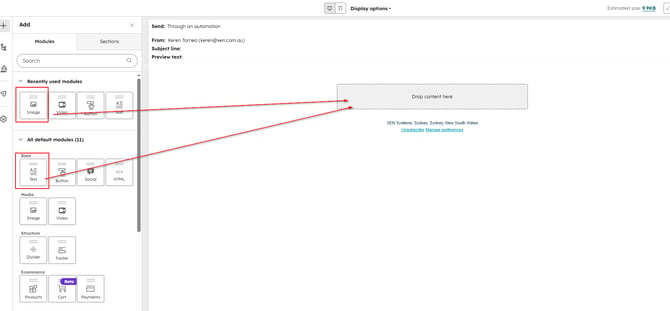
Add your copy, images, and branding.
-
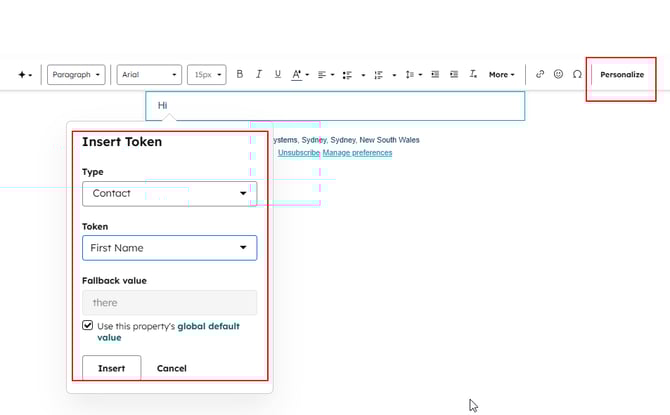
Personalization Tokens: Use the "Personalize" button to add contact or company names.
-
-
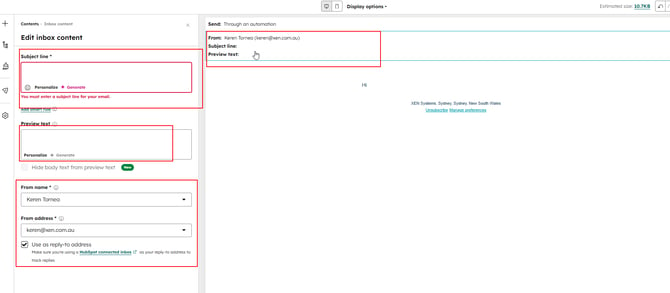
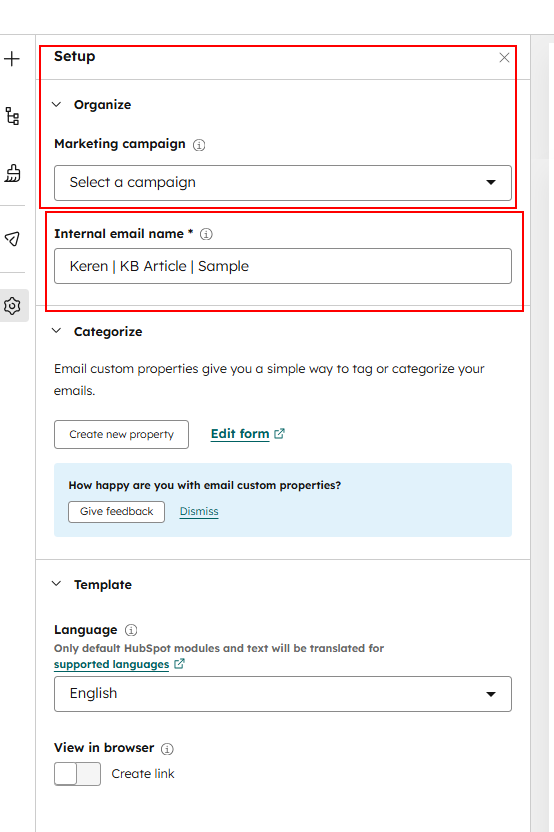
Edit inbox content and settings: Put in the "From" name, "From" address, and Subject Line, Preview Text etc.
-
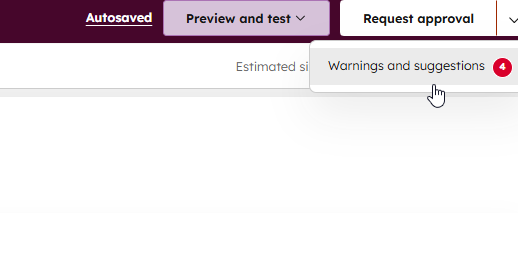
Review and Publish: * Click Review and publish in the top right.
-
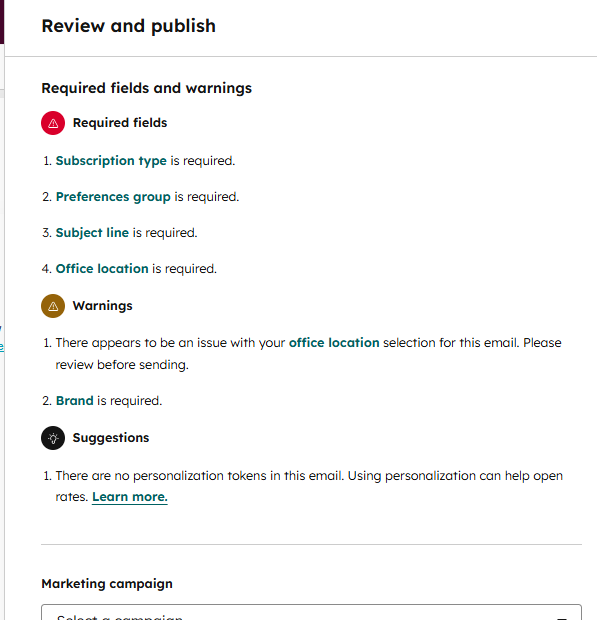
Resolve any errors flagged by HubSpot if there are any
-
Click Publish. The email is now "Ready for Automation."
-
Step 2: Create the Workflow
Now that your email is published, you need to tell HubSpot when to send it.
Here is a detailed walkthrough of how to set up a worfklow: Setting Up a Workflow in HubSpot.