
Sometimes you may notice that an email appears on a Contact record but is missing from the associated Deal record. Other times, an email might link to the "wrong" deal if a contact is involved in multiple active opportunities.
This happens because of HubSpot's Automatic Association rules.
We are going to use a HubSpot Record Deal as an example.
Why is the email missing from the Deal?
By default, HubSpot automatically associates one-to-one emails to a contact’s five most recent open deals. Your email might not be appearing on a deal because:
-
Deal Age: The deal isn't among the five most recent open deals.
-
Deal Status: If the deal is Closed, HubSpot stops automatically logging new emails to it to keep the timeline clean.
-
Logging Settings: The "Deals" checkbox may have been deselected in your email extension (Outlook/Gmail) when the email was sent.
How to Fix: Manually Associating an Email to a Deal
If an email is on a Contact record but not the Deal, you can fix this in seconds:
-
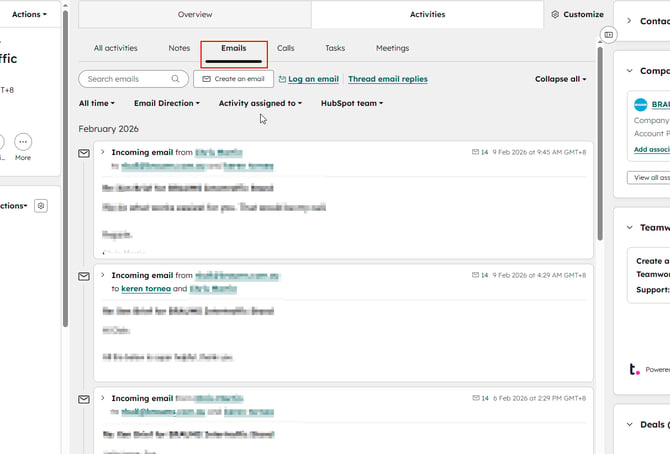
Open the Contact record where the email is visible.
-
Find the email on the activity timeline (Emails tab)
-
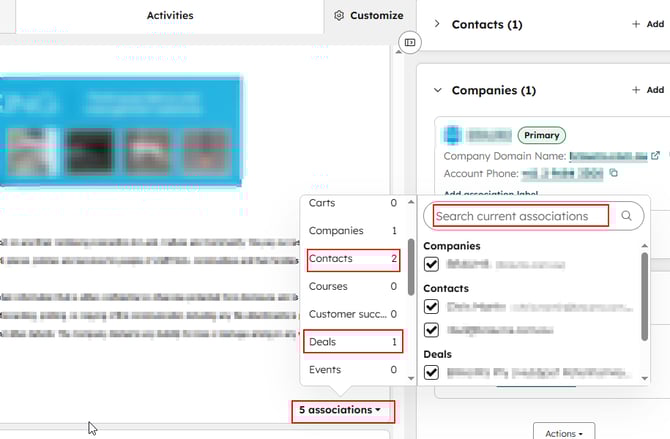
In the top right of the email activity, click the [X] Associations button (e.g., "2 associations").
-
In the search bar that appears, search for the Deal Name.
-
Check the box next to the correct Deal.
-
The email will now instantly appear on that Deal's activity timeline.
Tip: You can also use this same menu to uncheck a deal if the email was logged to the wrong record.
How to Prevent: Choosing the Correct Deal Before Sending
To ensure your emails go to the right place from the start, check your settings in the HubSpot Sales Extension (Chrome, Outlook, or Office 365):
-
Check your Defaults: In your extension settings, ensure "Deals" is selected under your default associations.
-
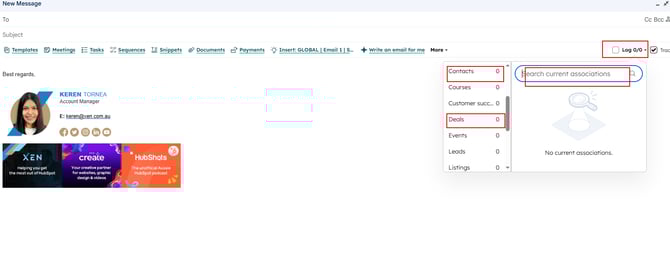
Select Specific Deals: Before hitting "Send" on a new email, click the Associations bar at the bottom of your email window. This allows you to manually tick the specific deal(s) you want this thread to log against.
Best Practices for Multiple Deals
If a contact has 3 or 4 active deals, HubSpot’s "auto-log" can get messy.
-
Be Selective: For high-stakes accounts, get into the habit of clicking the "Associations" tab in your Gmail/Outlook sidebar before sending.
-
Audit the Timeline: If you see an email in the "wrong" deal, use the Edit Associations steps above to move it. This keeps things accurate.