
Whether you’re automating naming conventions for Deals or providing entry templates for Tickets and Contacts, here are the three ways to manage default values in HubSpot.
1. Deal Default Name
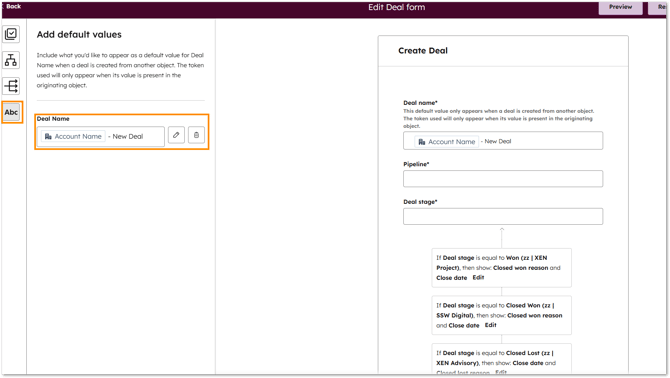
For Deals, HubSpot allows you to automate the "Name" field. This is perfect for ensuring that every record created from a Company or Contact follows a standard naming convention.
How to set it up:
-
In your HubSpot account, click the Settings icon.
-
In the left sidebar, navigate to Objects and select Deals.
-
On the Setup tab, click Customise the 'Create Deal' form.
-
In the left sidebar, click Add default values.
-
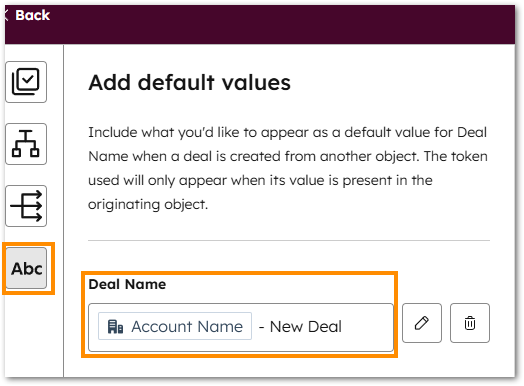
Edit the Name field and use the Personalise button to pull in tokens like Company Name or First Name.
-
Then Save.
Note: These tokens only populate if the information exists in the record you are creating the deal from.
2. Property-Level Default Values
This is a newer feature available for all objects (Contacts, Companies, Deals, etc.). It is most effective for Single-line or Multi-line text properties where you want to provide a pre-formatted template for your team.
Use Case: The "Fill-in-the-Blanks" Template Instead of a blank box for "Onboarding Notes" or "Lead Qualification," you can pre-fill the property with a structure for your team to follow:
-
Primary Goal: [Enter here]
-
Technical Constraints: ***
-
Required Budget: ***
How to set it up:
-
Go to Settings > Properties.
-
Select the Object type (e.g., Contact, Company, or Custom Object).
-
Search for the property you want to edit and click its name.
-
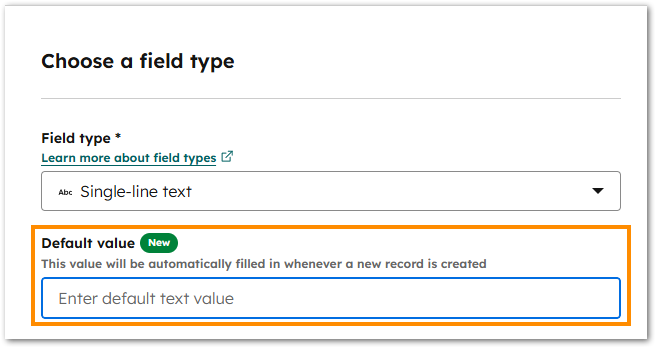
Click the Field type tab.
-
In the Default value box, enter your template or placeholder text.
-
Click Save. Now, every new record created will automatically show this text in that field.
3. Workflow-Based Default Values
If you need to set a default value based on specific conditions, or if you want to apply a value to thousands of existing records at once, Workflows are the most flexible option.
How to set it up:
-
Navigate to Automation > Workflows.
-
Create a workflow for your specific object (Contact, Company, etc.).
-
Set the Trigger: Use "Property [X] is unknown" or "Create date is less than 1 day ago."
-
Add Action: Select Set property value.
-
Choose the property and the value you want to enter.
Tip: Unlike standard property settings, Workflows allow you to use Data Tokens. This means your "default" value doesn't have to be static text; you can automatically pull in data from other properties on that same record or even from associated objects (e.g., pulling a Company’s "Region" into a new Deal’s "Description" field).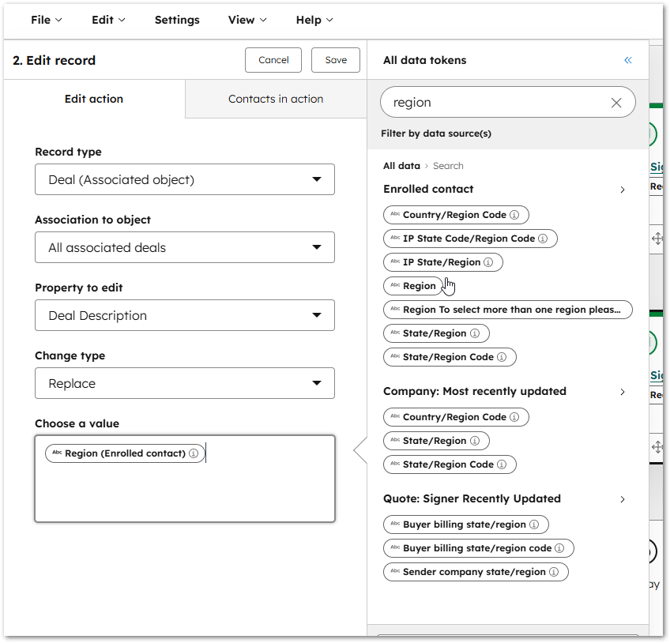
-
Turn on the workflow. This will act as a background "cleaner" that fills in gaps whenever a record is created or updated.